
Documentation
Boring Made to Measure: user guide
A dimension-based price calculator for made-to-order WooCommerce products. The customer enters width and length, picks a shape, finish and add-ons, and the price updates live. Pro adds a Google Merchant Center feed that shows the same price in the feed, in structured data and on the product page.
Lite or Pro
| Lite (free) | Pro | |
|---|---|---|
| Calculator: dimensions, shapes, finishes, options, add-ons | yes | yes |
| Dimension limits, minimum price, rounding | yes | yes |
| Industry presets, sale price as a discount | yes | yes |
| Google Merchant feed with size variants | yes | |
| Product/Offer structured data with the configuration price | yes | |
| Feed diagnostics, updates and support | yes |
Requirements and installation
- WordPress 6.4+, WooCommerce 8.0+, PHP 7.4+.
- Simple products. Set up different thicknesses or materials as separate simple products.
- Go to Plugins > Add New, search for “Boring Made to Measure”, click Install Now and Activate. A zip file goes through Upload Plugin.
- After activation WooCommerce > Made to measure > Getting started opens.
- In Pro, if the feed URL returns 404: Settings > Permalinks > Save Changes.
The plugin follows the WordPress language (English or Polish). A preset stores labels in the language active when it is applied, so apply the preset in your store’s language.
Getting started
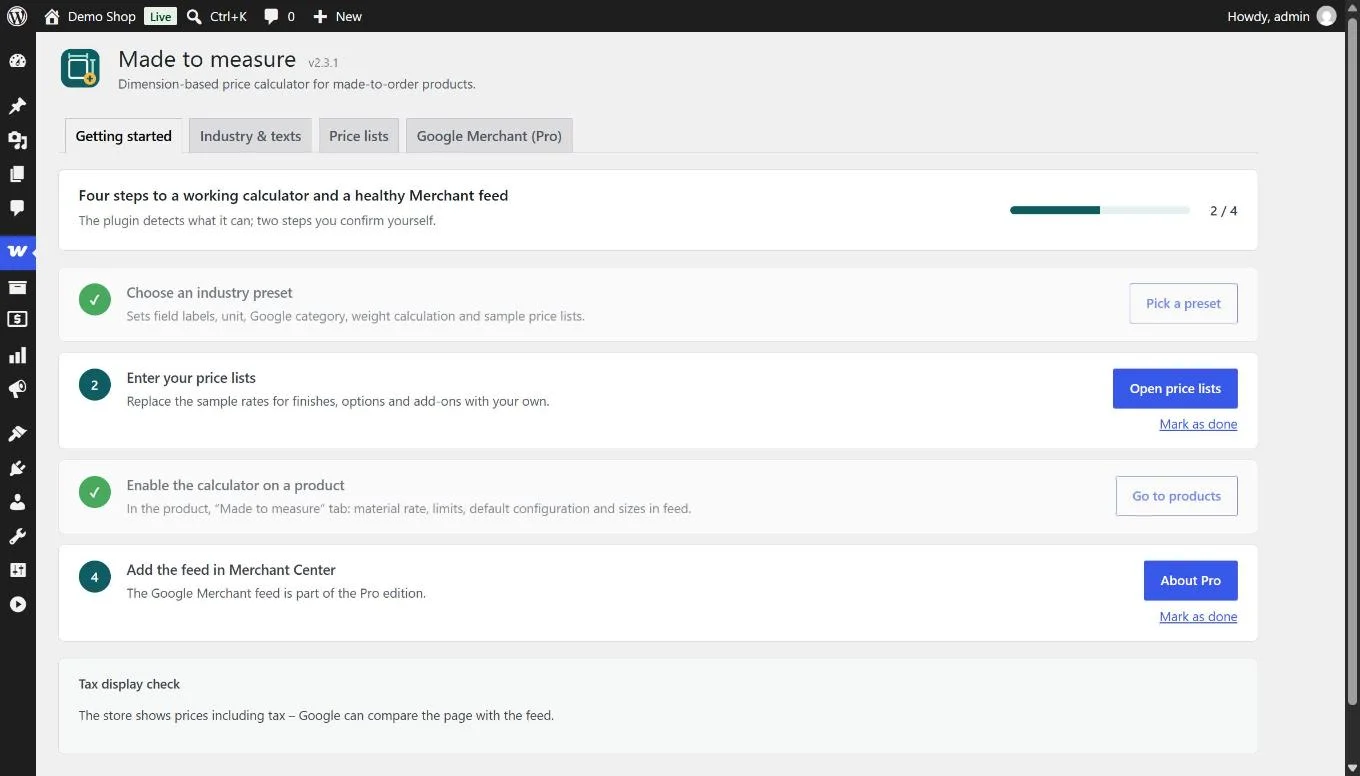
The Getting started tab shows four steps and a progress bar. The plugin detects two steps itself, the other two you confirm with “Mark as done”.
| Step | What to do | How the plugin knows |
|---|---|---|
| 1 | Choose an industry preset | after “Apply preset” |
| 2 | Enter price lists | after saving the Price lists tab, or manually |
| 3 | Enable the calculator on a product | when at least one product has it enabled |
| 4 | Add the feed in Merchant Center (Pro) | manually |
At the bottom there is a tax display check. If the store shows net prices to customers, a red warning appears. Google requires VAT-inclusive prices for consumers, so set WooCommerce > Settings > Tax > Display prices in the shop: Including tax.
Industry & texts
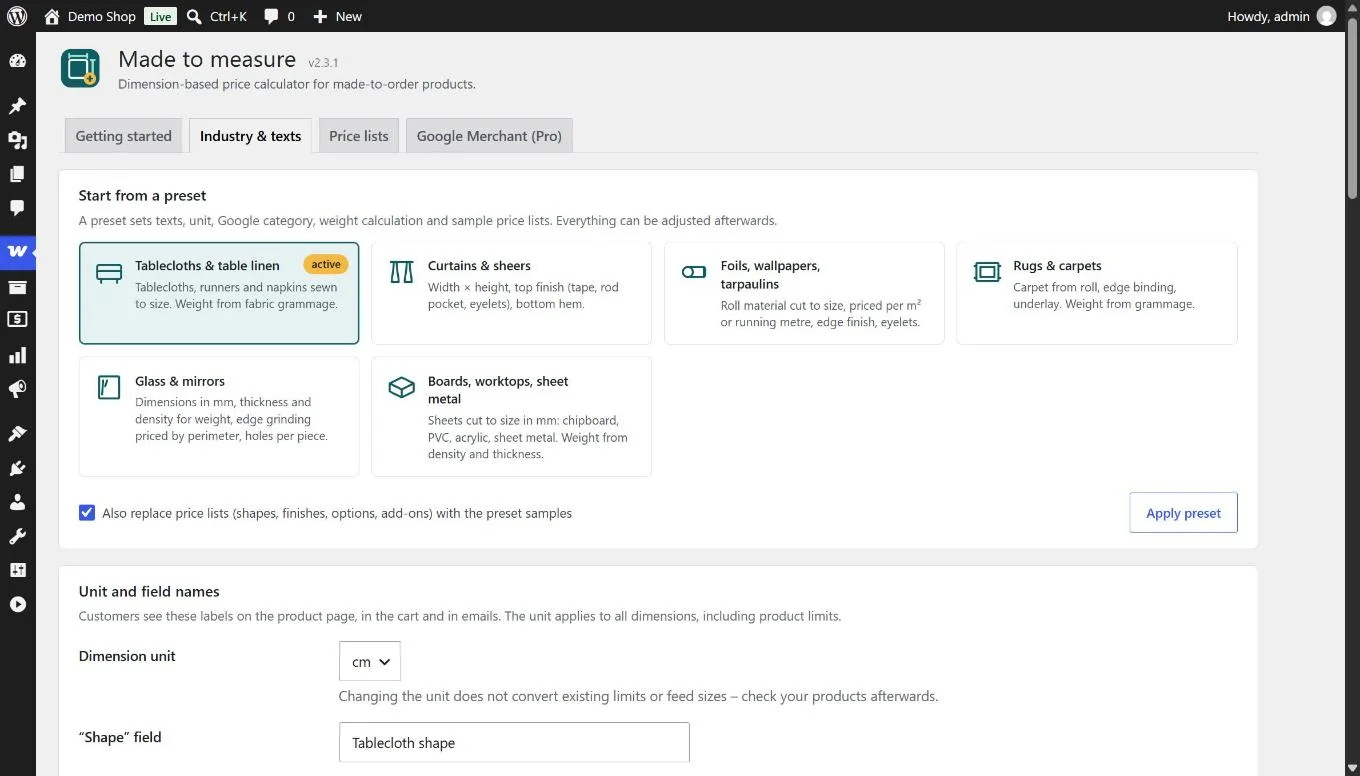
Six ready profiles: tablecloths, curtains, foils and tarpaulins, rugs, glass and mirrors, boards and sheet metal. A preset sets the field labels, the dimension unit (cm, mm or m), the hint below the dimensions, the Google category, the feed title suffix, the shipping weight calculation, the return policy and sample price lists (if “Also replace price lists” is ticked). Select a tile, click Apply preset, confirm, then adjust any field.
Unit and field names
- Dimension unit applies to customer fields, product limits and feed sizes. Changing it does not convert existing numbers, so check your products afterwards.
- Fields are the names customers see on the page, in the cart and in emails: shape, width, length, finish, extra options, add-ons.
- Material name, Shape surcharge name and Dimension name are the lines of the price summary and the cart, for example “Size: 140×180 cm”.
Feed data
- Google category (ID) from the Google taxonomy. For example tablecloths 4143, curtains 2885, rugs 2796, mirrors 6373.
- Shipping weight has four modes: from grammage (g/m²) for fabrics, foils and carpets; from density and thickness (kg/m³ × mm) for glass, boards and sheet metal; a fixed weight; or do not send. Packaging weight is added to the result.
- Returns: “no returns” for made-to-order products or “returns accepted within a number of days”. It must match your terms and the Merchant Center return settings.
Below the form there is a live preview of the configurator for a selected product. After saving, click Reload.
Price lists
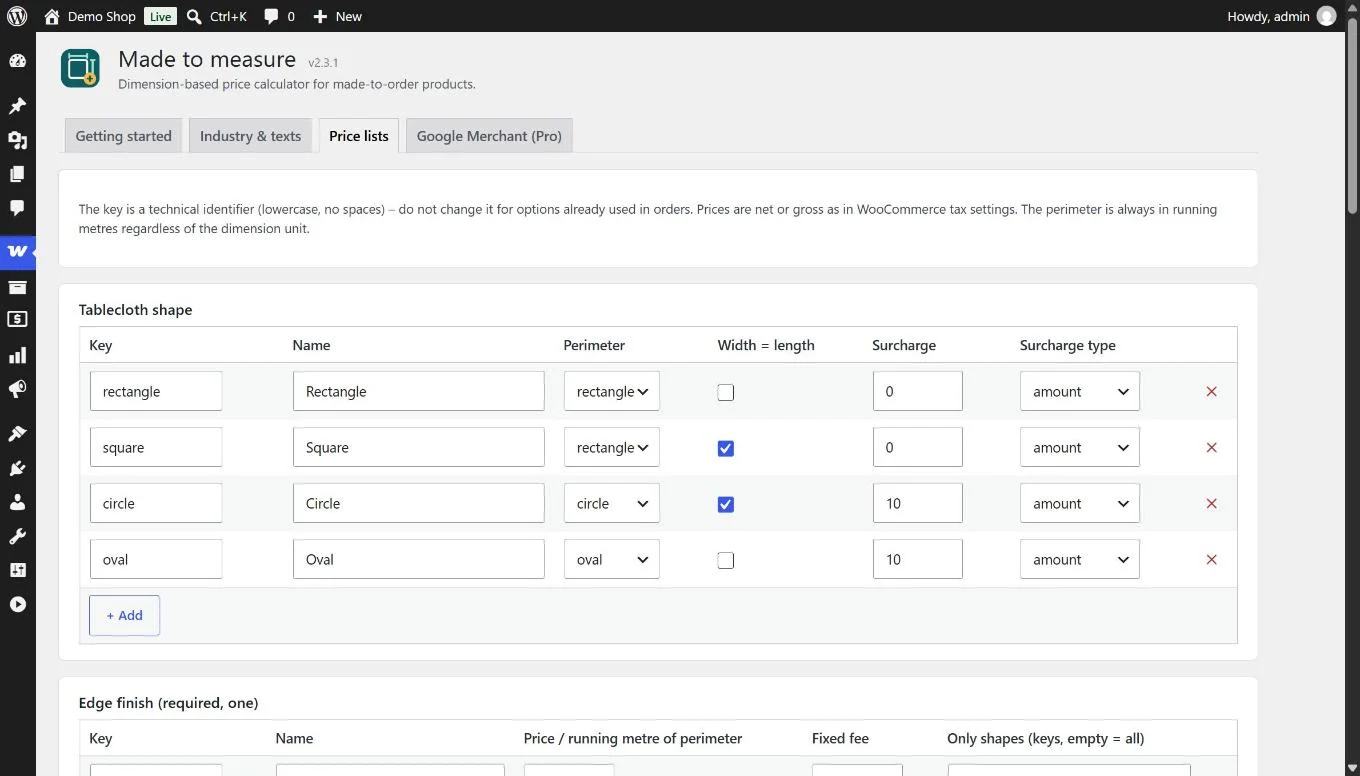
Four dictionaries shared by the whole store. Each entry has a key (lowercase letters, digits, hyphen) and a name customers see. Do not change the key of an entry that is already in orders. Enter prices the same way as other store prices, net or gross according to “Prices entered with tax”. Perimeter is always in running metres and area in m², whatever the dimension unit.
| List | How it works |
|---|---|
| Shapes | Rectangle, square, circle, oval. A surcharge as an amount or a percentage of the material price (for example for cutting a circle). Square and circle ask for one dimension. |
| Finishes (required, one) | Price per running metre of perimeter plus an optional fixed fee. “Only shapes” limits a finish to some shapes, for example binding only for rectangle and square. |
| Extra options (optional, many) | Per running metre of perimeter, a fixed amount, or a percentage of material and finish. “Only with finish” limits an option to some finishes. |
| Add-ons (optional, with quantity) | Price per piece and a maximum quantity. With a maximum of 1 the customer sees a checkbox, otherwise a number field. |
Price formula
material = max(width x length [m2] or running metres from roll, minimum) x product rate
shape    = fixed surcharge or % of material
finish   = perimeter [m] x price/m + fixed fee
options  = per metre | fixed | % of (material + finish)
add-ons  = price x quantity
total    = apply minimum price, rounding, product sale discount
Product settings
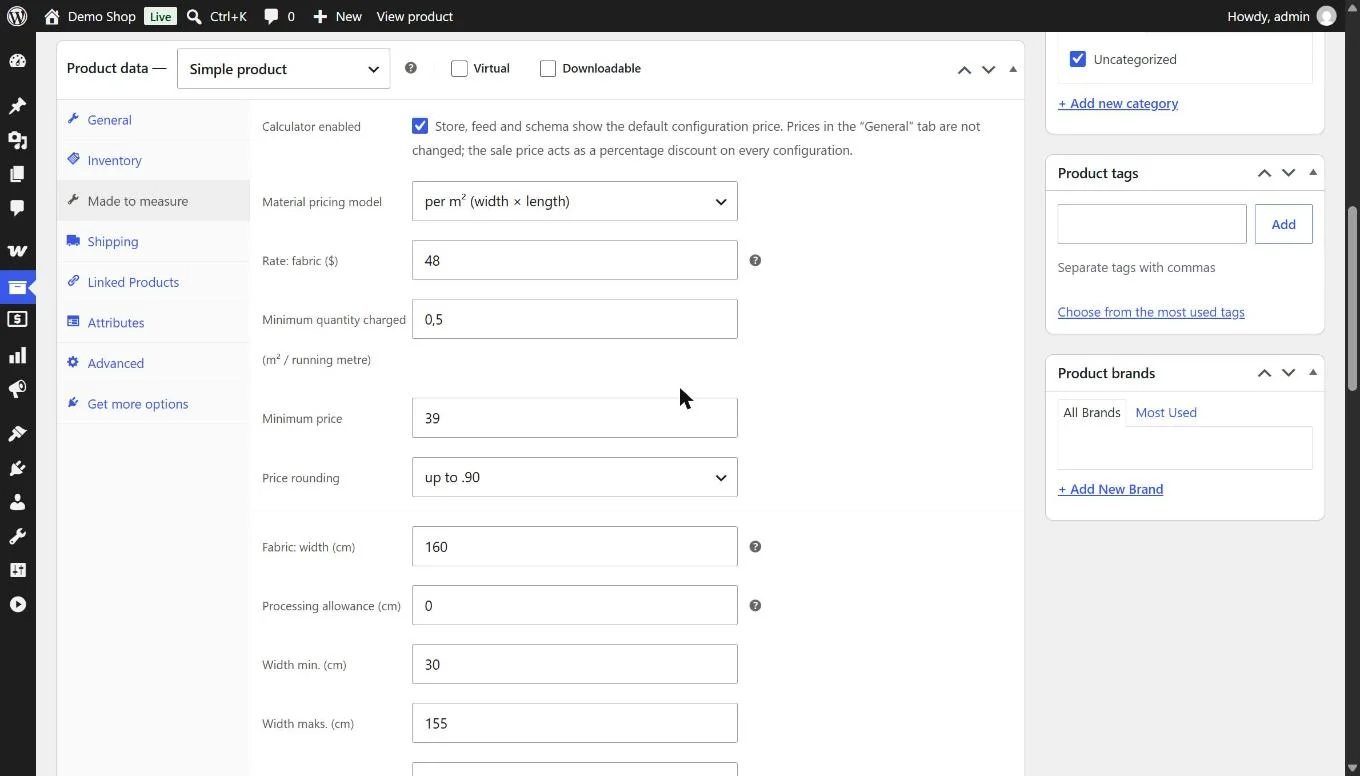
Edit a simple product and open Product data > Made to measure.
| Field | Meaning |
|---|---|
| Calculator enabled | Turns on the configurator for this product (and the feed and structured data in Pro). |
| Material pricing model | Per m² (width × length) or per running metre from a roll. On a roll the shorter side is cut when the longer one fits the roll width. |
| Rate | Material price per m² or running metre. |
| Minimum quantity charged | For example 0.5 m²: smaller pieces are charged as 0.5. |
| Minimum price, price rounding | Lower price limit. Rounding to the cent, up to whole units, or up to .90. |
| Roll / sheet width, processing allowance | The shorter side plus the allowance cannot exceed the roll width. 0 means no limit. |
| Width and length min./max. | Hard limits in the profile unit. |
| Shapes, finishes, options, add-ons | Which price list entries are available for this product. |
| Default configuration | The size, shape and finish whose price is the product price in the store listing. |
| Sizes in feed (Pro) | One per line: 140x180, 140x220 oval, D140 (circle), 120 (square). Each becomes a separate feed item. |
Prices and sales
The plugin never writes prices to the database. Prices in the General tab stay untouched, and the default configuration price is applied on the fly. If the product has a sale price, the plugin derives a percentage discount (20 to 15 is −25%) and applies it to every configuration. Sale dates are respected. Price sorting and the price filter use the default configuration price.
Dimension limits
Customers cannot order sizes outside the limits. The check runs three times: in the browser (a message and a disabled button), when adding to the cart and on every cart recalculation.
What customers see
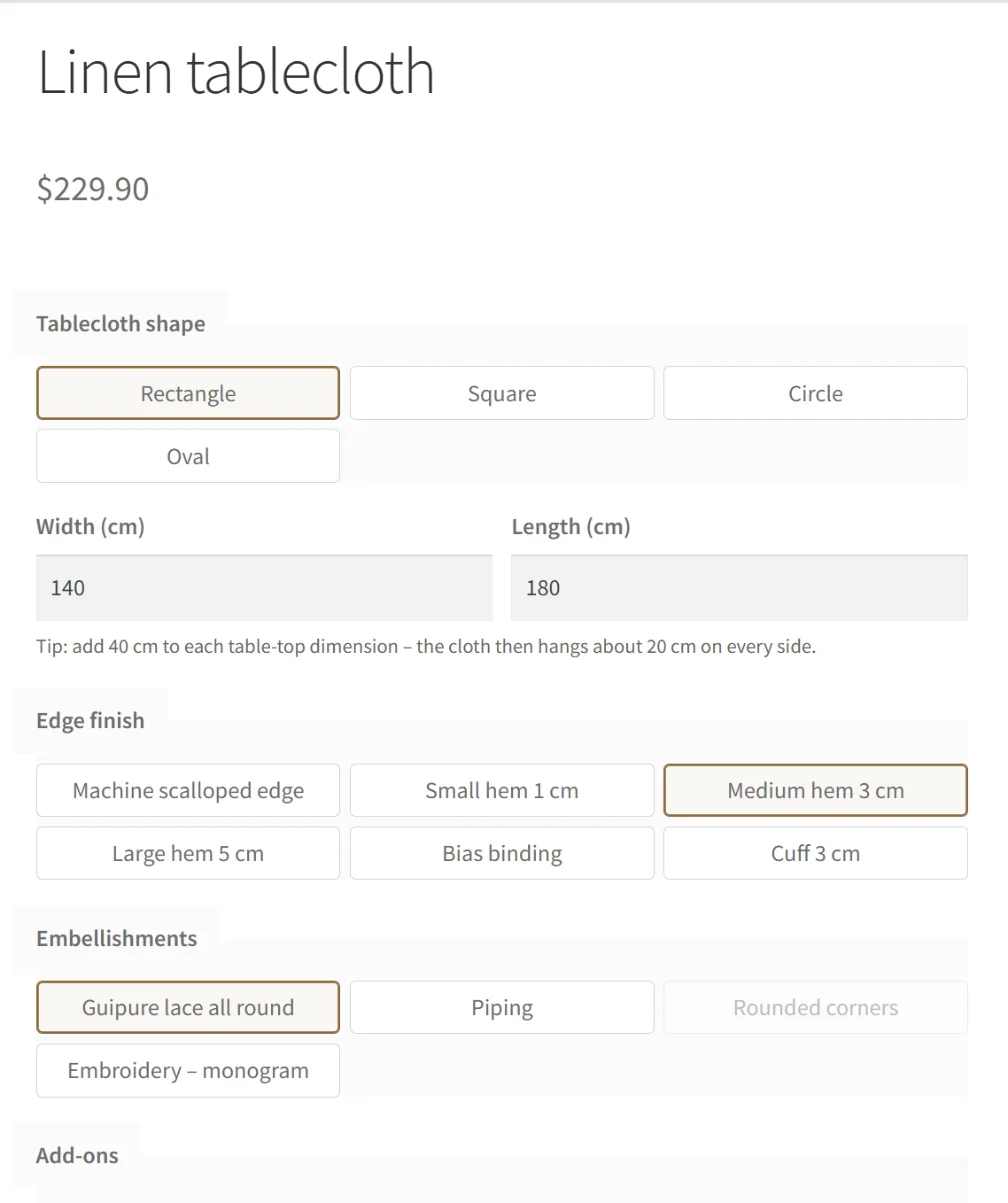
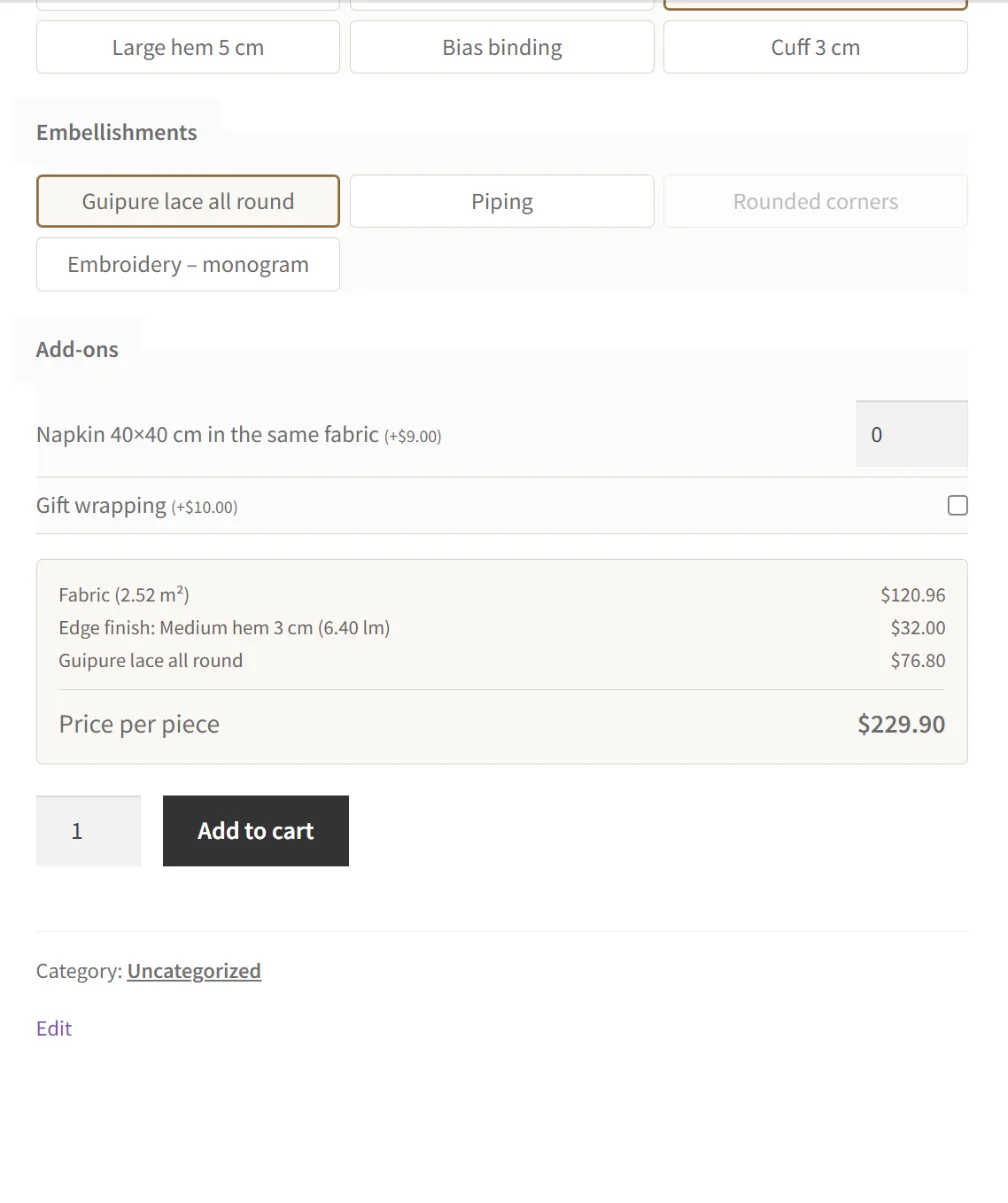
- Shape, as tiles.
- Width and length (one field for circle and square).
- A hint under the dimensions.
- Finish, as tiles. Finishes not available for the chosen shape are greyed out.
- Extra options and add-ons with quantity.
- A summary: material, cut, finish, options, add-ons, regular price (on sale) and the price per piece.
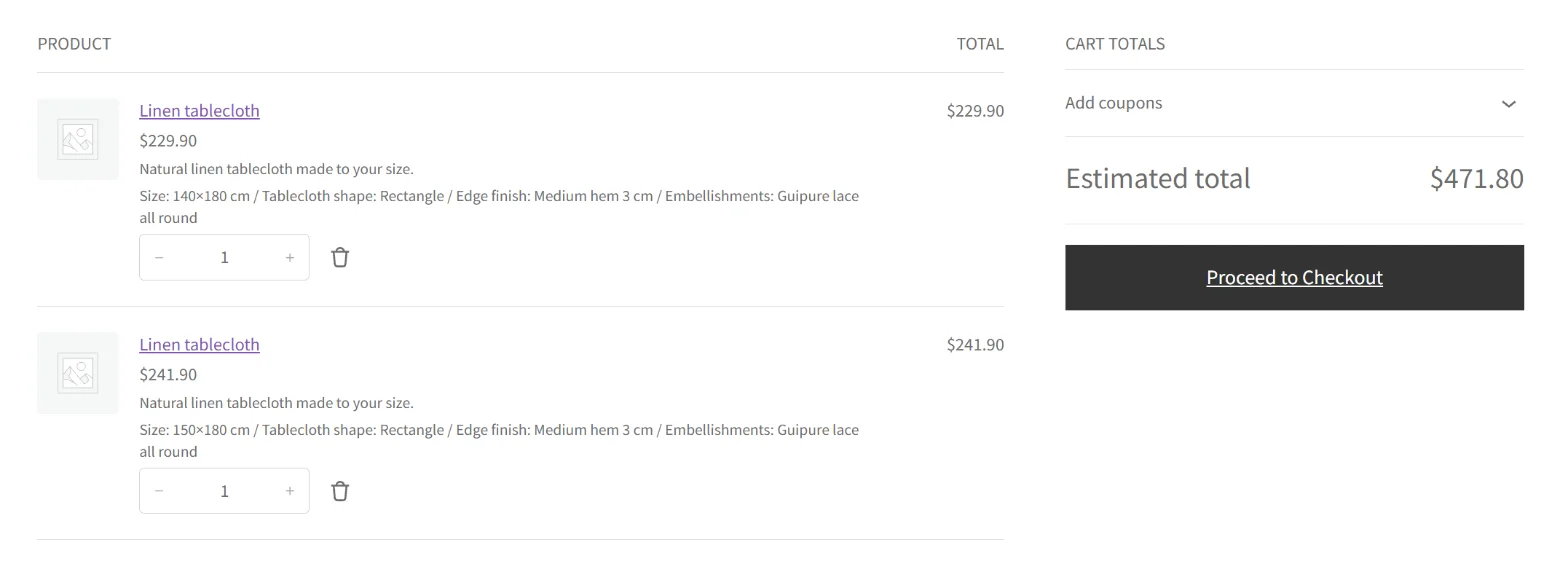
The price updates live and the page URL follows the configuration, so a customer can copy a link to it. The cart, emails and the order show size, shape, finish, options and add-ons.
Boring Made to Measure Pro
License activation
- Buy Pro or start the 14-day trial (no card required) on the Made to Measure page.
- Install the Pro zip from your purchase email through Plugins > Add New > Upload Plugin and activate it. Use only one edition at a time.
- Open WooCommerce > Made to measure. The activation screen appears: paste the license key from the email and click Activate License.
Without an active license the calculator keeps working, but the feed stops (it returns HTTP 402) and structured data with the configuration price is switched off. Manage your licenses and invoices in your Freemius account.
Google Merchant feed
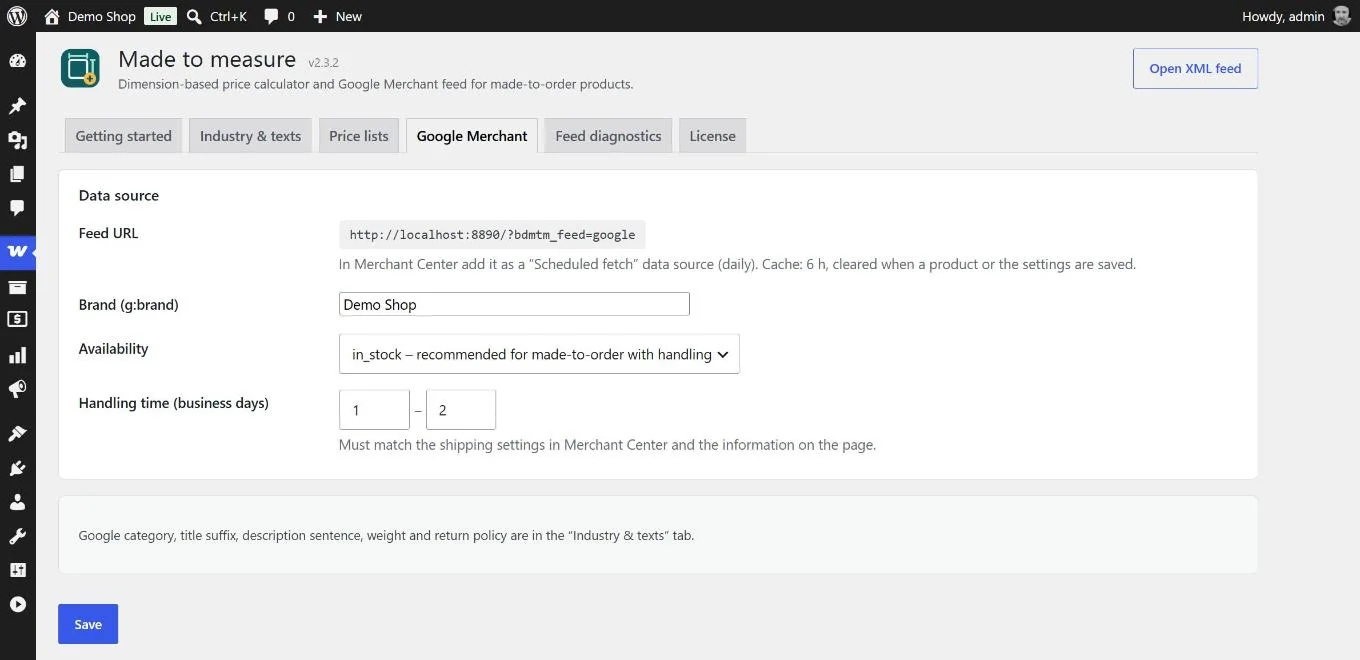
- Feed URL: copy it to Merchant Center.
- Brand: the
g:brandattribute. - Availability and handling time:
in_stockwith a handling time in business days. It must match the shipping settings in Merchant Center.
- In Merchant Center open Products > Data sources > Add source and choose Scheduled fetch.
- Paste the feed URL and set daily fetching.
- Remove the same products from other feeds to avoid duplicates.
- Back in the wizard, click “Mark as done”.
The feed cache lasts 6 hours. It is cleared when a product or the settings are saved, and manually with the button in Diagnostics.
What is in the feed
Every size from “Sizes in feed” plus the default configuration is a separate item with an ID, an item group ID, a title, a description, a link with the configuration, images, the gross price and sale price, the Google category, size, material, color, weight and handling time, plus a product detail with shape, size and finish. The link opens the product page with that configuration selected and the same price.
Structured data
On the product page the plugin adds Product/Offer with the VAT-inclusive price, InStock, weight and the return policy. It works with WooCommerce, Yoast WooCommerce SEO and Rank Math.
Feed diagnostics
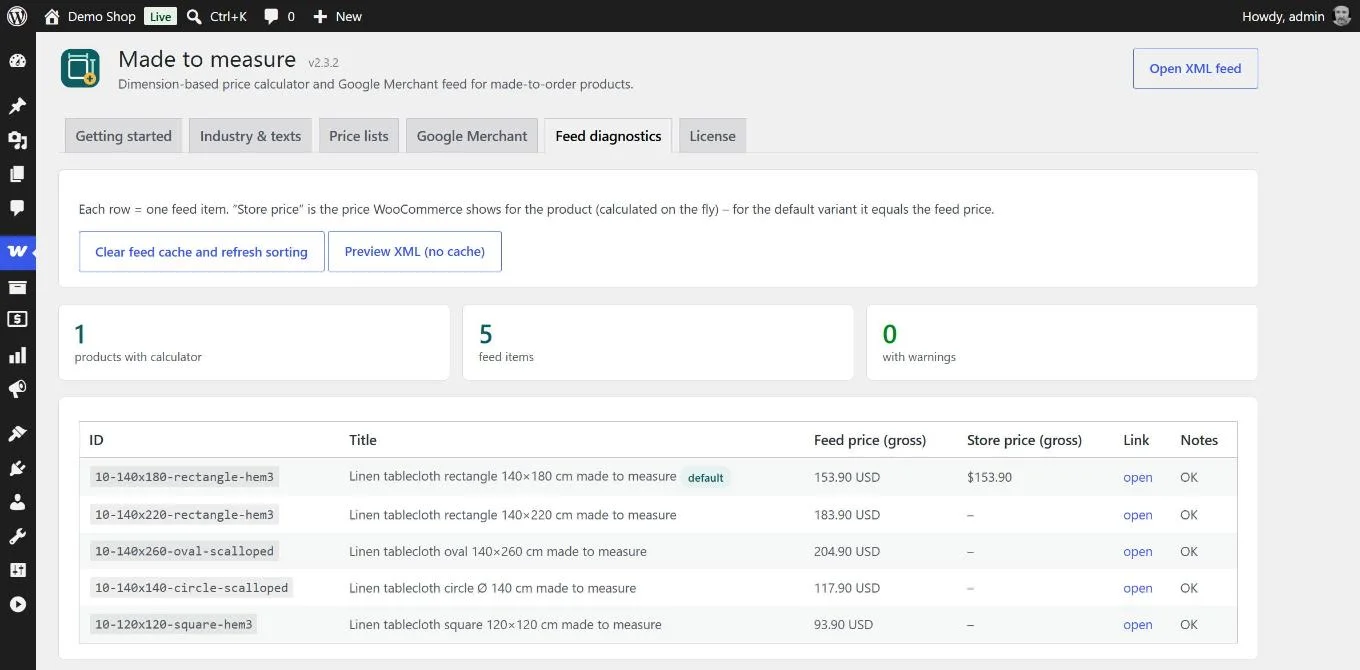
Three numbers (products, items, warnings) and a table with every item: feed price, store price, link and notes. Preview XML shows the feed without the cache.
| Warning | What to do |
|---|---|
| No main image | Add a product image. |
| Very short description | Extend the description. |
| Color missing | Enter the color in the product tab. |
| Google category missing | Fill it in Industry & texts. |
| Store price differs from feed price | Another plugin overrides the product price. Disable it for this product. |
Troubleshooting
Two configurators on the page. Another product fields plugin (for example Advanced Product Fields) is active. Remove its fields from products that use the calculator.
The feed returns 404. Go to Settings > Permalinks and click Save Changes.
Merchant Center reports a price mismatch. Check in Diagnostics that the store shows gross prices and that no other plugin overrides the price.
The listing price differs from the configurator. The listing shows the default configuration price. Change it in the product tab.
Prices did not change after editing a price list. Reload the page and clear your page cache for product pages.
“The product configuration in your cart is no longer available”. A price list or the limits changed after the item was added. The customer configures the product again.
Deactivation and removal
After deactivation the store immediately returns to the prices from the General tab, the sorting table is restored and the feed stops. Settings, product configurations and price lists stay in the database in case you turn the plugin back on. Deleting the plugin removes its settings, caches and per-product configuration. Order history is kept.
Need help? Contact support. Back to Boring Made to Measure.