
Documentation
Boring Quote: user guide
Boring Quote adds a “Request a quote” button to your WooCommerce shop. Customers collect products into a list and send it with a short form, and you reply with prices and availability. With Pro you send a priced offer that the customer accepts with one click and pays through your normal checkout.
Lite or Pro
| Lite (free) | Pro | |
|---|---|---|
| “Request a quote” button on product pages | yes | yes |
| Quote list, request form, emails, request inbox | yes | yes |
| Catalog mode (hide prices and “Add to cart”) | yes | yes |
| Header counter, blocks and shortcodes | yes | yes |
| Priced offer with discount and shipping, sent from the admin | yes | |
| One-click acceptance and payment through checkout | yes | |
| Custom form fields | yes | |
| Quote button on shop and category pages | yes |
Pro is an add-on to Lite. Lite must be installed and active.
Installation
- Install and activate WooCommerce.
- Go to Plugins > Add New, search for “Boring Quote”, click Install Now and then Activate. A zip file goes through Upload Plugin.
- After activation the Getting started screen opens. The “Request a Quote” page is created for you.
Pro installs the same way, from the zip file you get after purchase.
Getting started
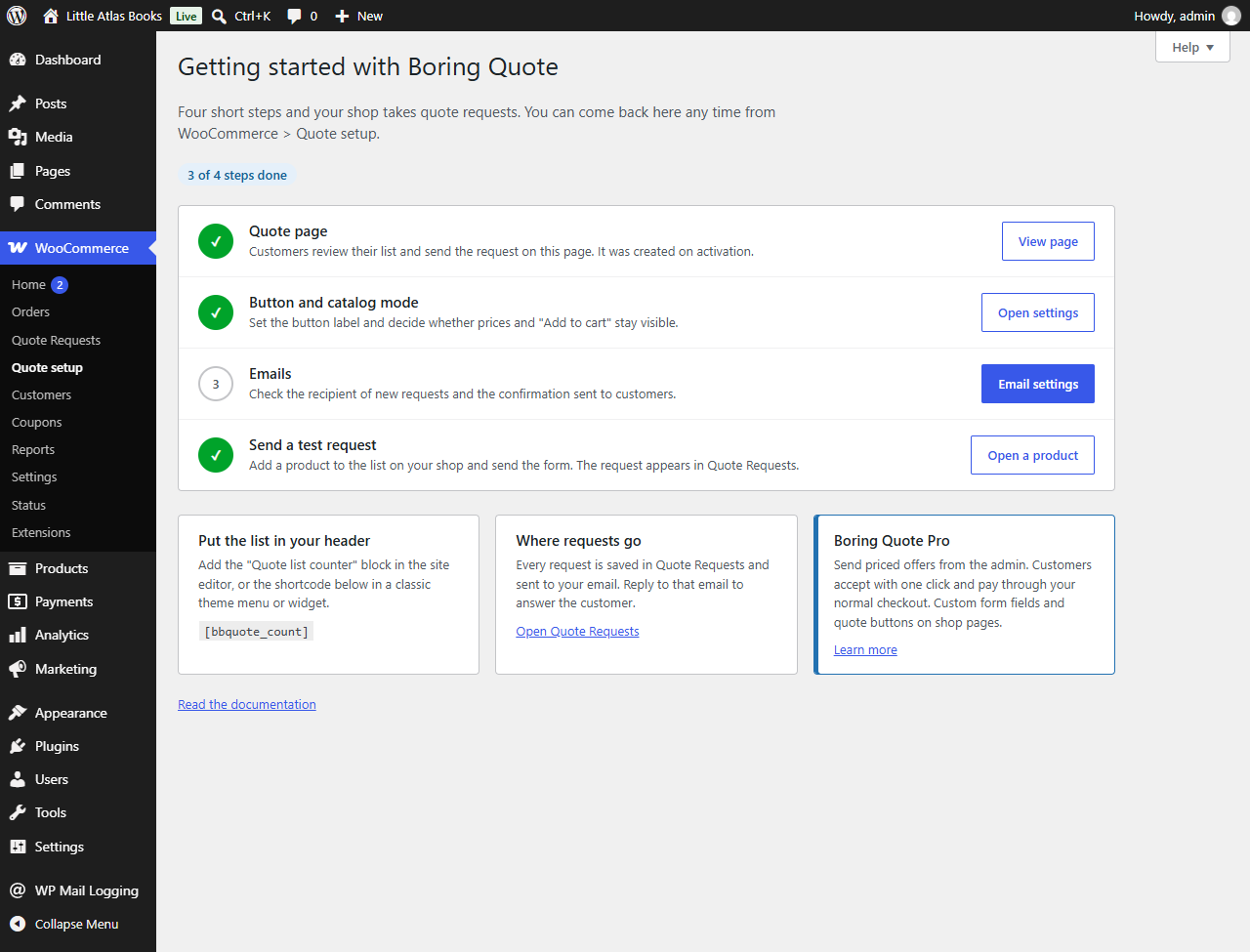
WooCommerce > Quote setup walks you through four steps and ticks off the ones that are done. Come back to it any time.
- Quote page. Customers review their list and send the form here.
- Button and catalog mode. The button label and whether prices and “Add to cart” stay visible.
- Emails. Who receives new requests and what the customer confirmation looks like.
- Test request. Add a product to the list and send the form to see the whole flow.
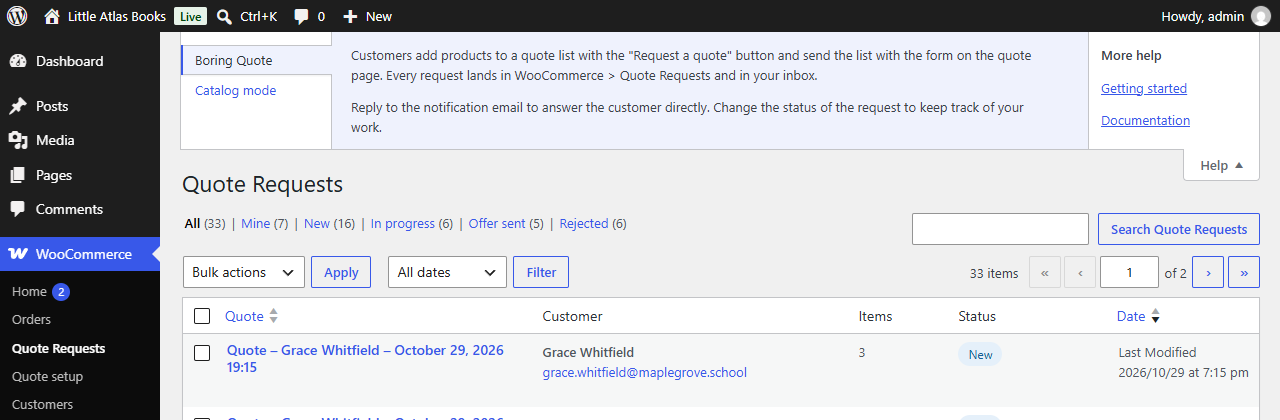
Every plugin screen has a Help tab in the top right corner with the essentials.
Settings
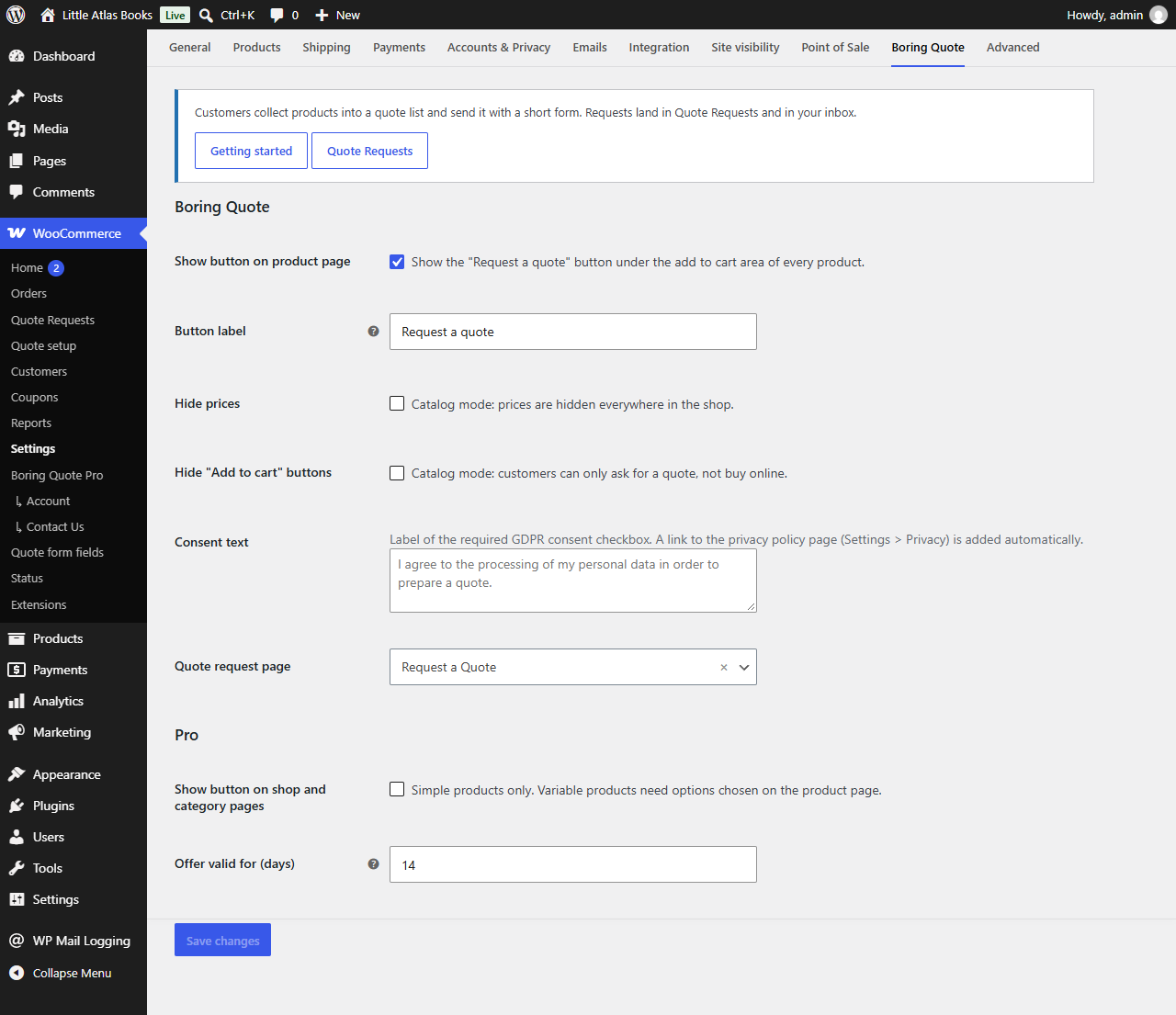
Settings live in WooCommerce > Settings > Boring Quote.
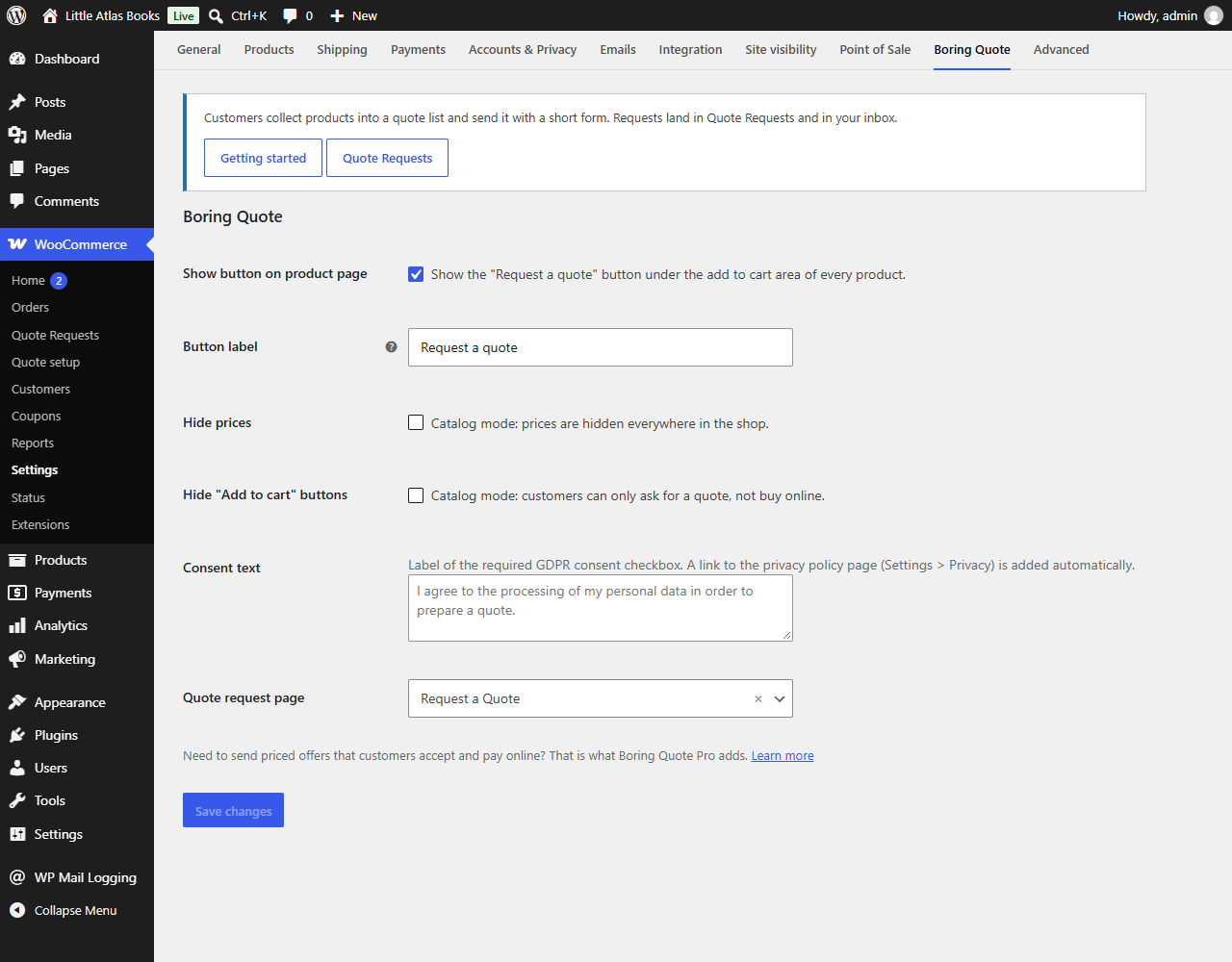
| Setting | What it does |
|---|---|
| Show button on product page | The quote button under the add to cart area. |
| Button label | For example “Ask for a price”. |
| Hide prices | Catalog mode: prices disappear across the shop. |
| Hide “Add to cart” buttons | Catalog mode: customers can only ask for a quote. |
| Consent text | Label of the required GDPR consent. A privacy policy link is added automatically. |
| Quote request page | The page with the list and the form. |
A shop that does not sell online (catalog mode)
If your products may not be sold online and every purchase starts with a conversation:
- Tick Hide prices and Hide “Add to cart” buttons.
- Keep the product page button on.
Customers then browse the catalog, add products to their list and send a request. You agree on price, payment and delivery by email or phone.
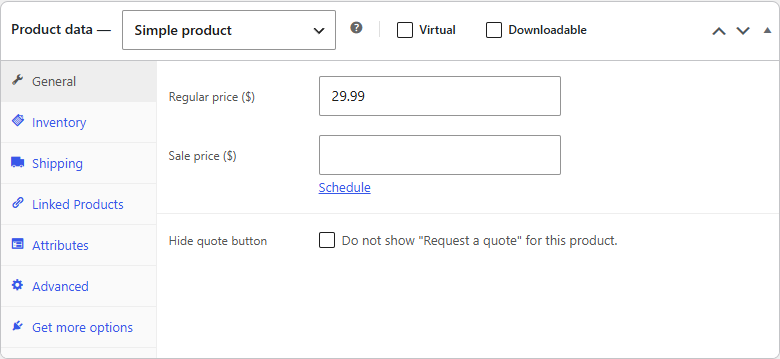
Hide the button on one product
In the product editor, in the Product data box, tick Hide quote button.
What customers see
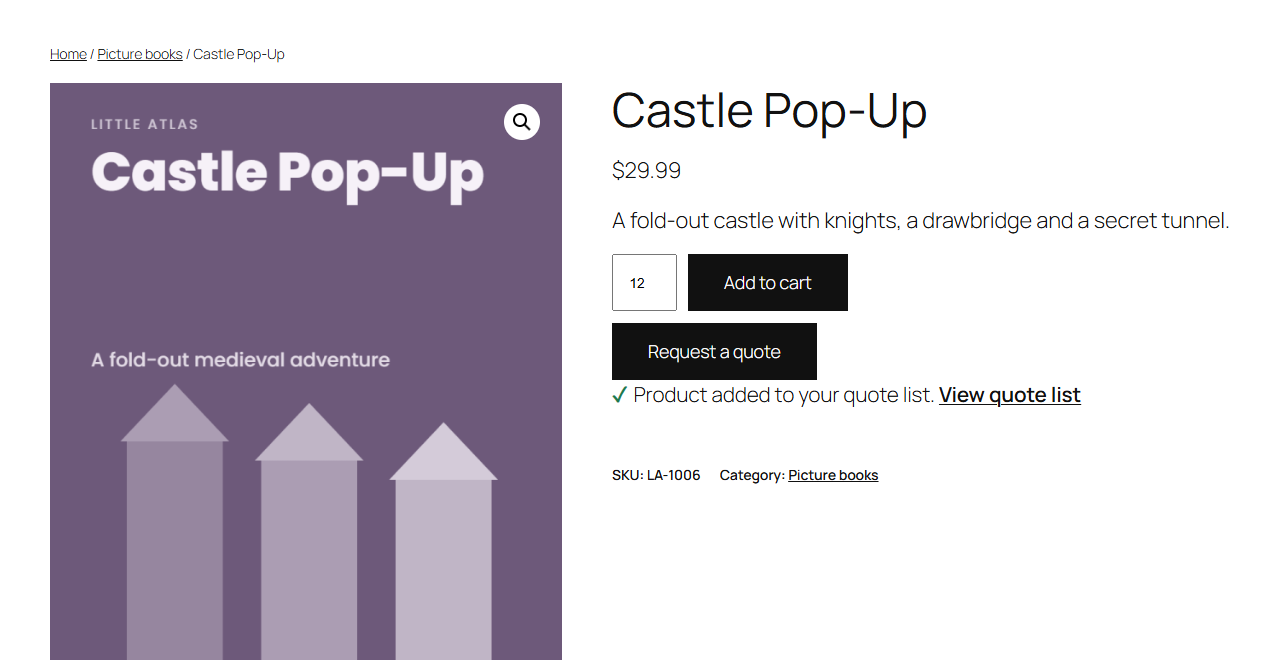
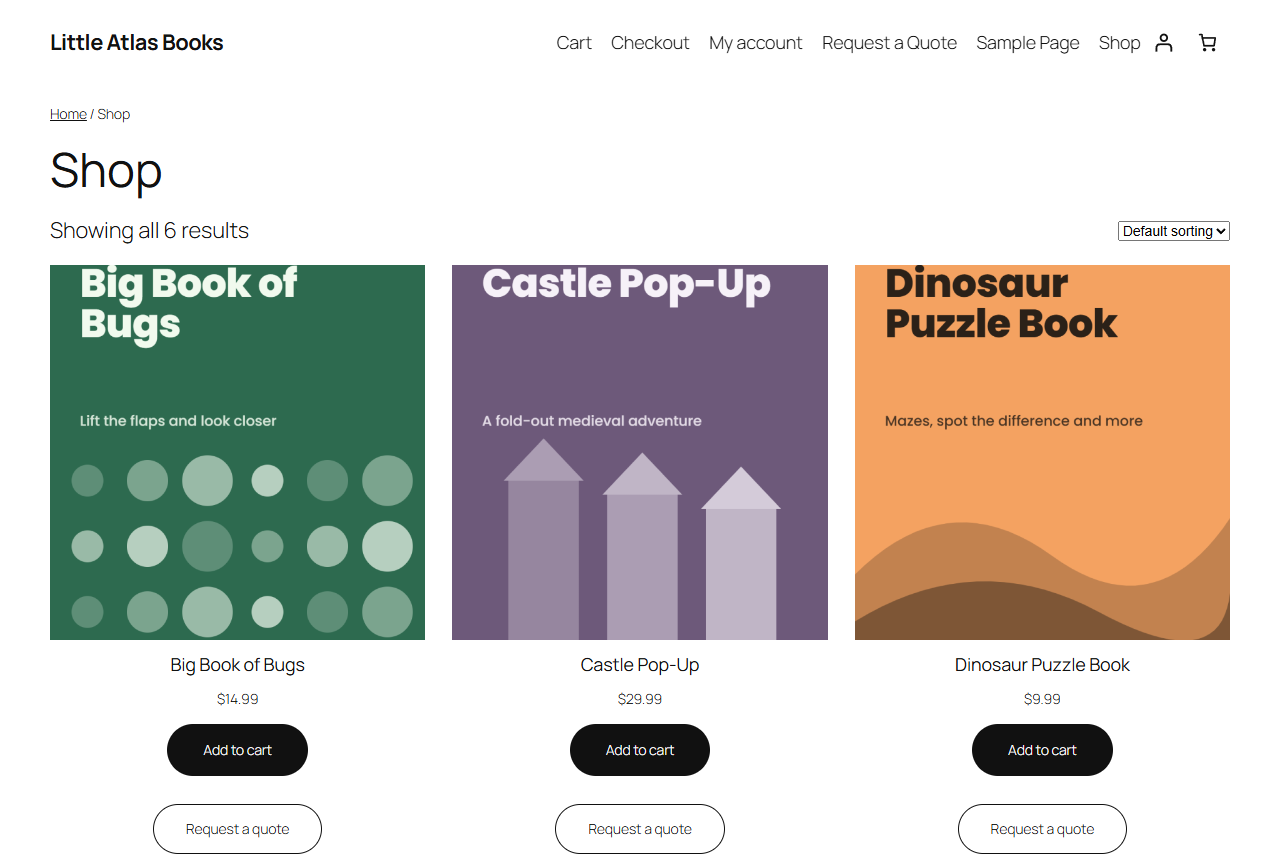
Button on the product page. The customer picks a quantity (and a variation, if the product has them) and clicks Request a quote. The product is added without a page reload and a link to the list appears under the button.
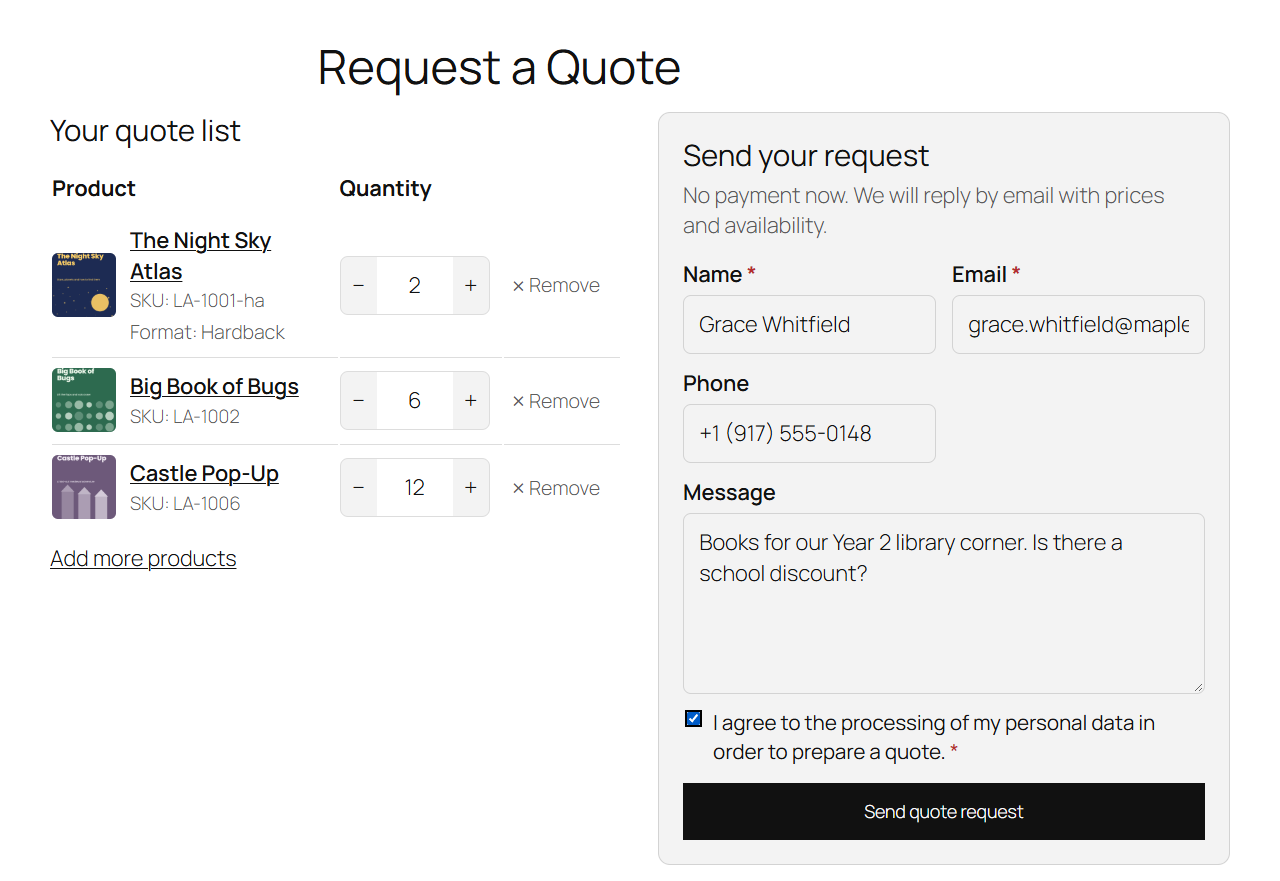
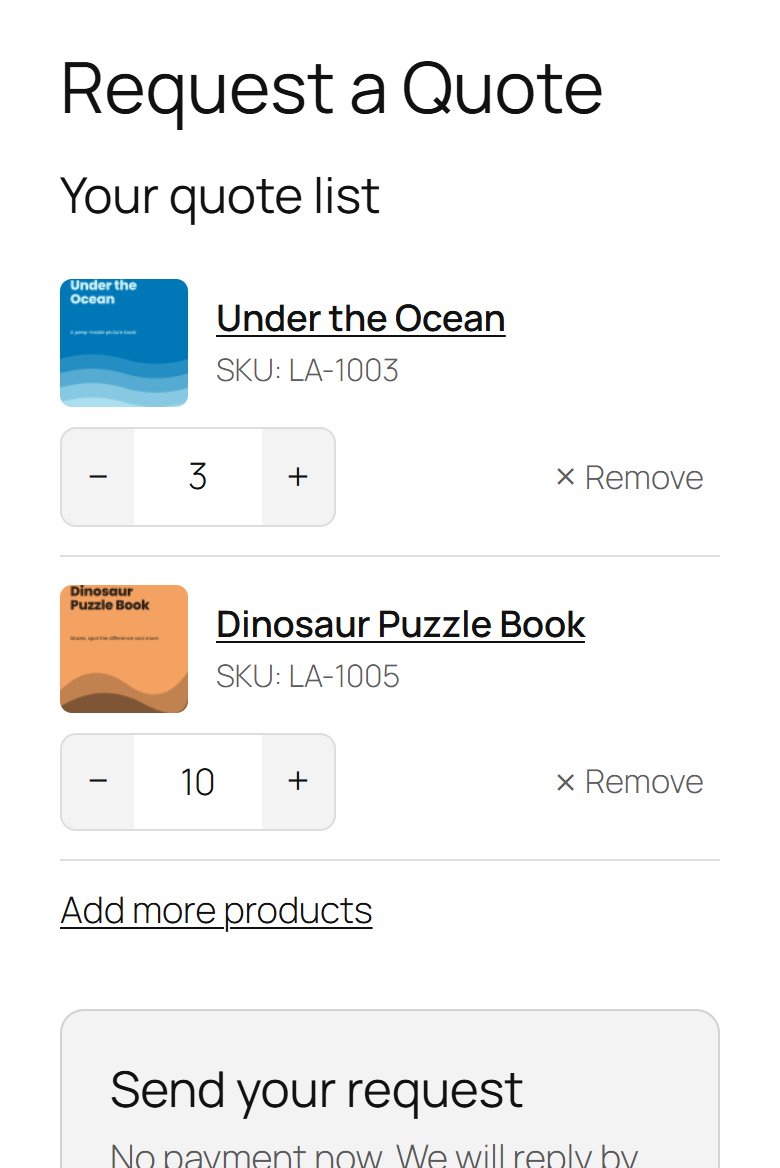
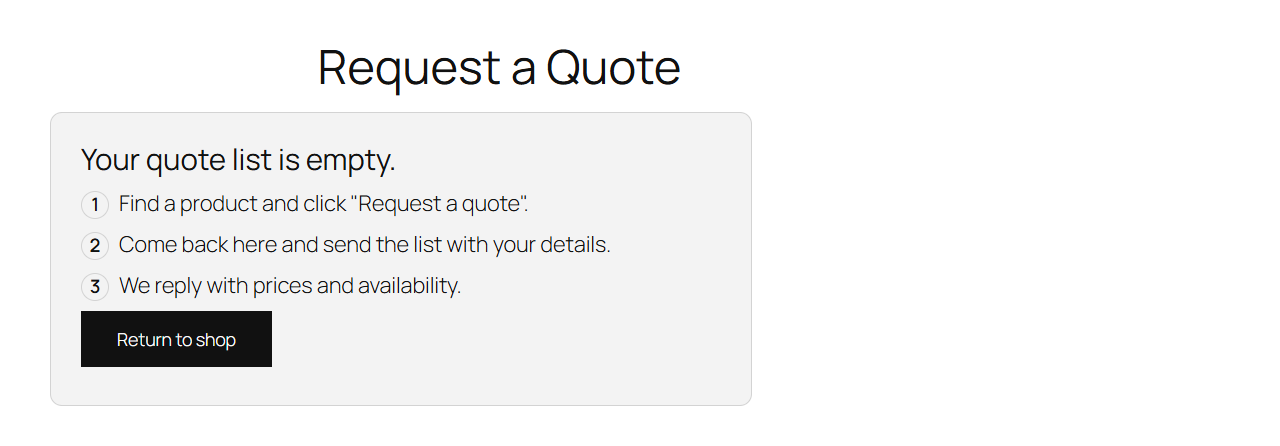
List and form. On the quote page customers change quantities with the minus and plus buttons, remove items and fill in the form. On wide layouts the list and the form sit side by side; on phones every item becomes its own card. An empty list shows a short how-to and a link to the shop.
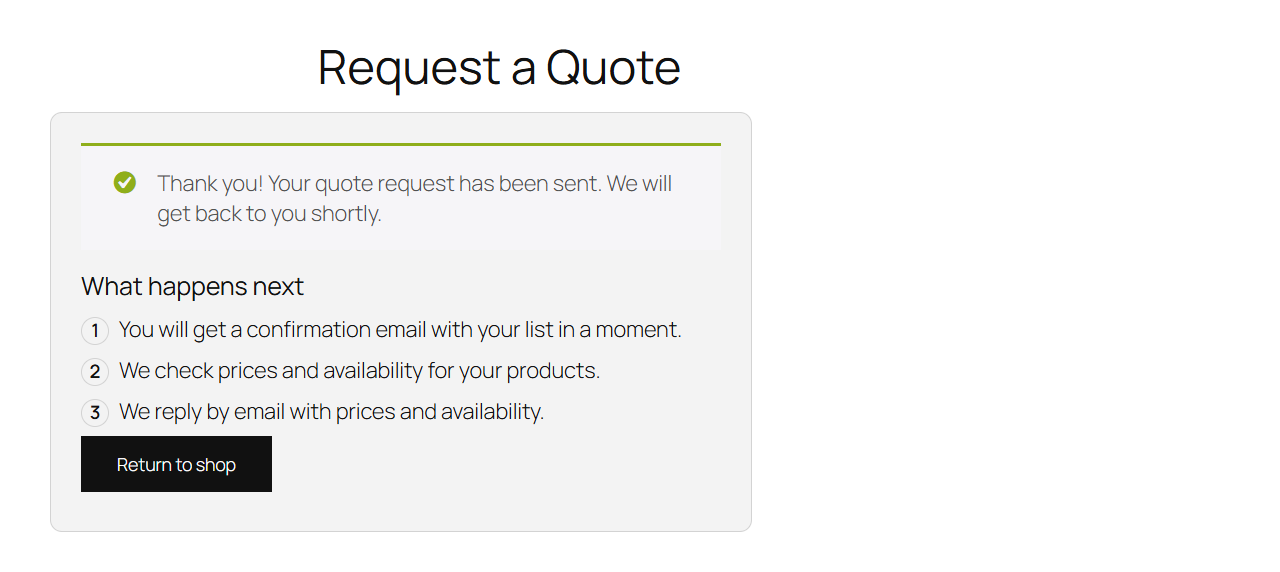
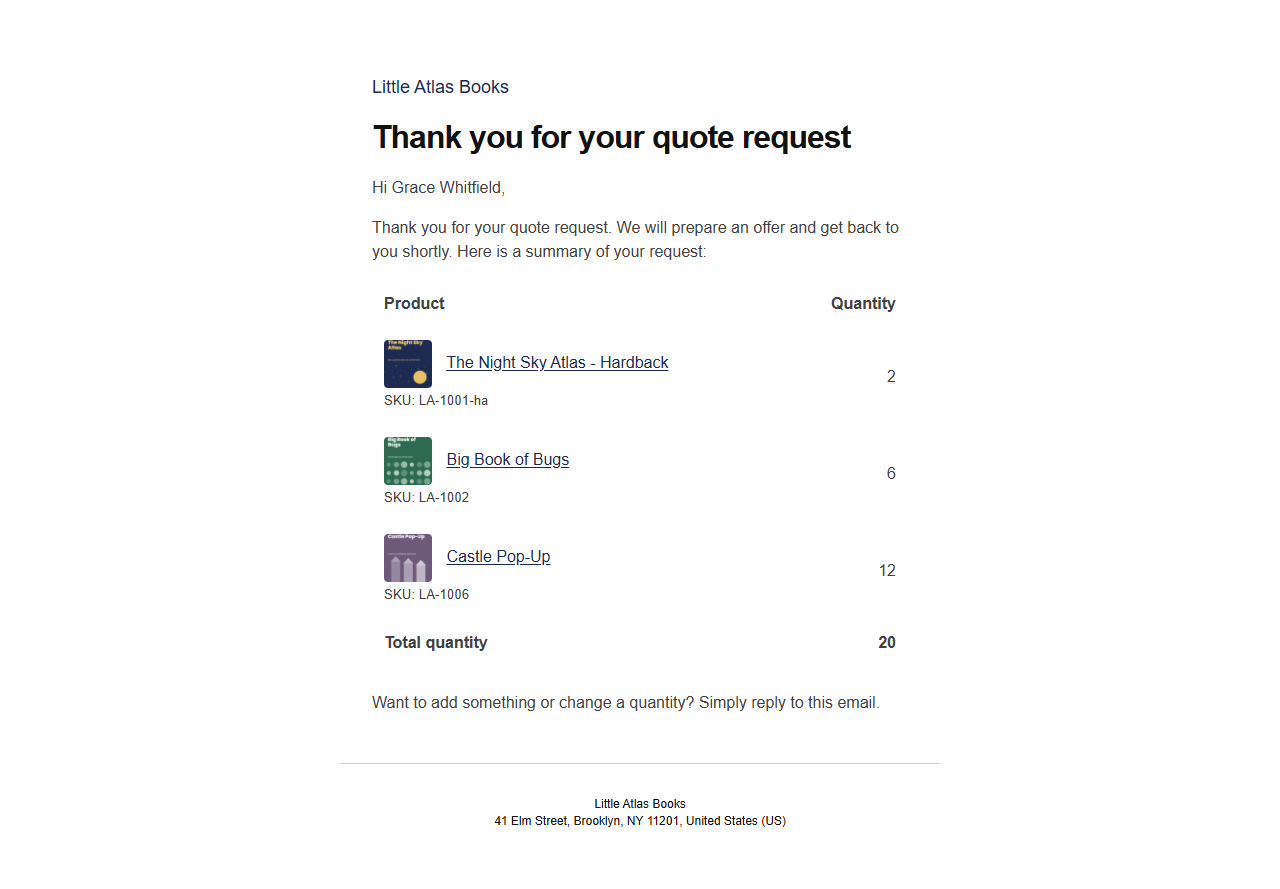
After sending. The customer sees a confirmation on the page and gets an email with the list.
Handling requests
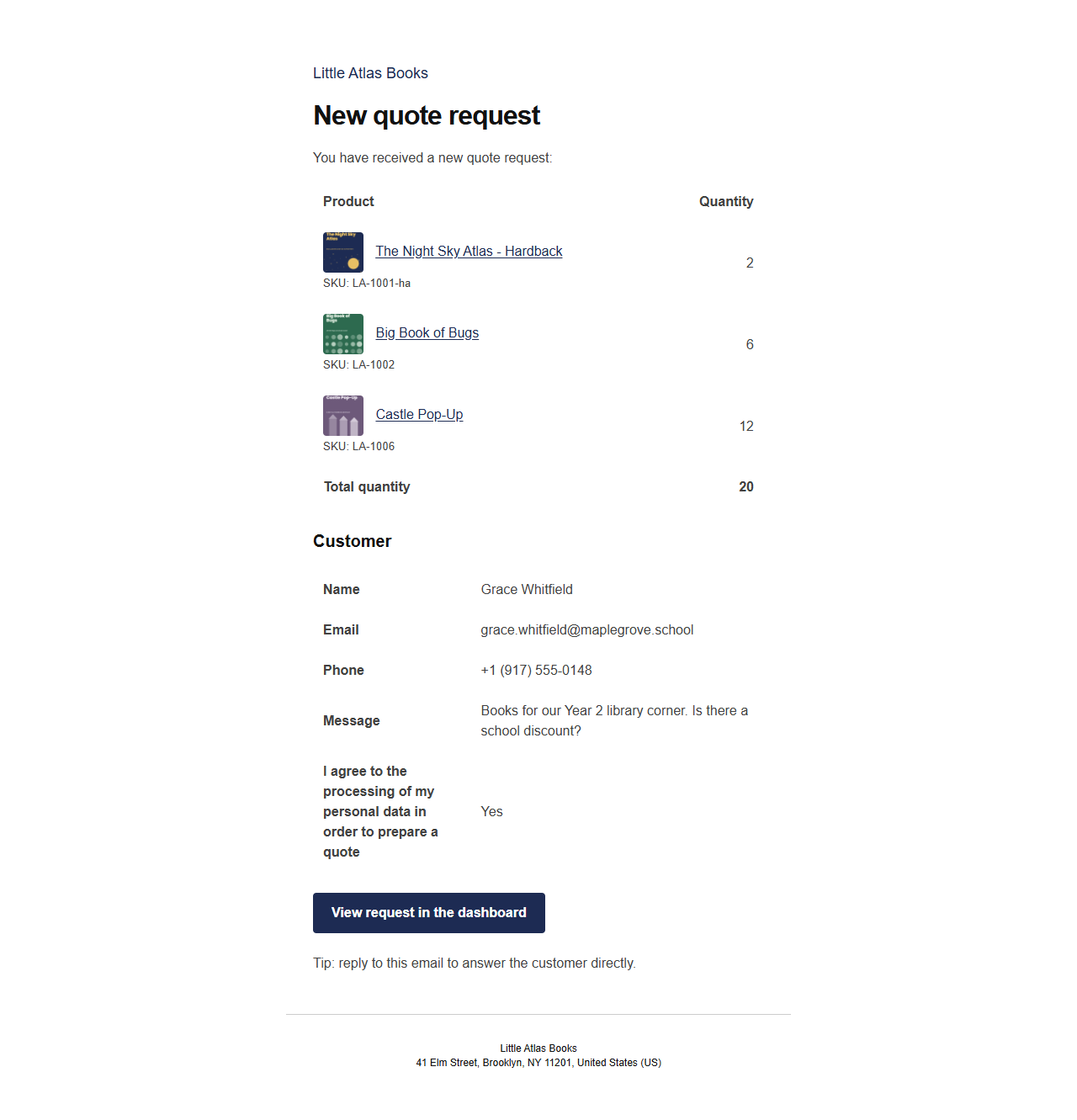
Notification. Every new request arrives by email. Reply to it and your answer goes straight to the customer. The button in the email opens the request in the dashboard.
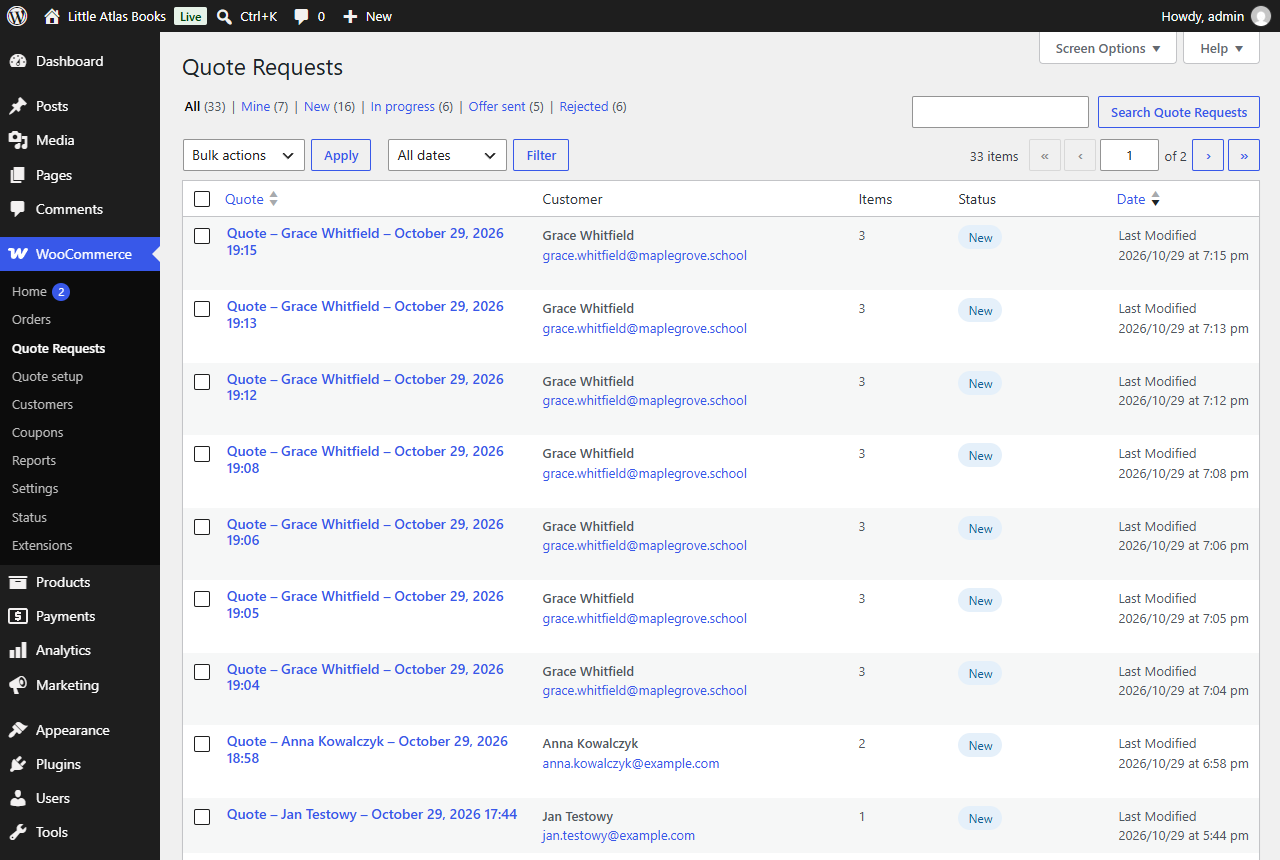
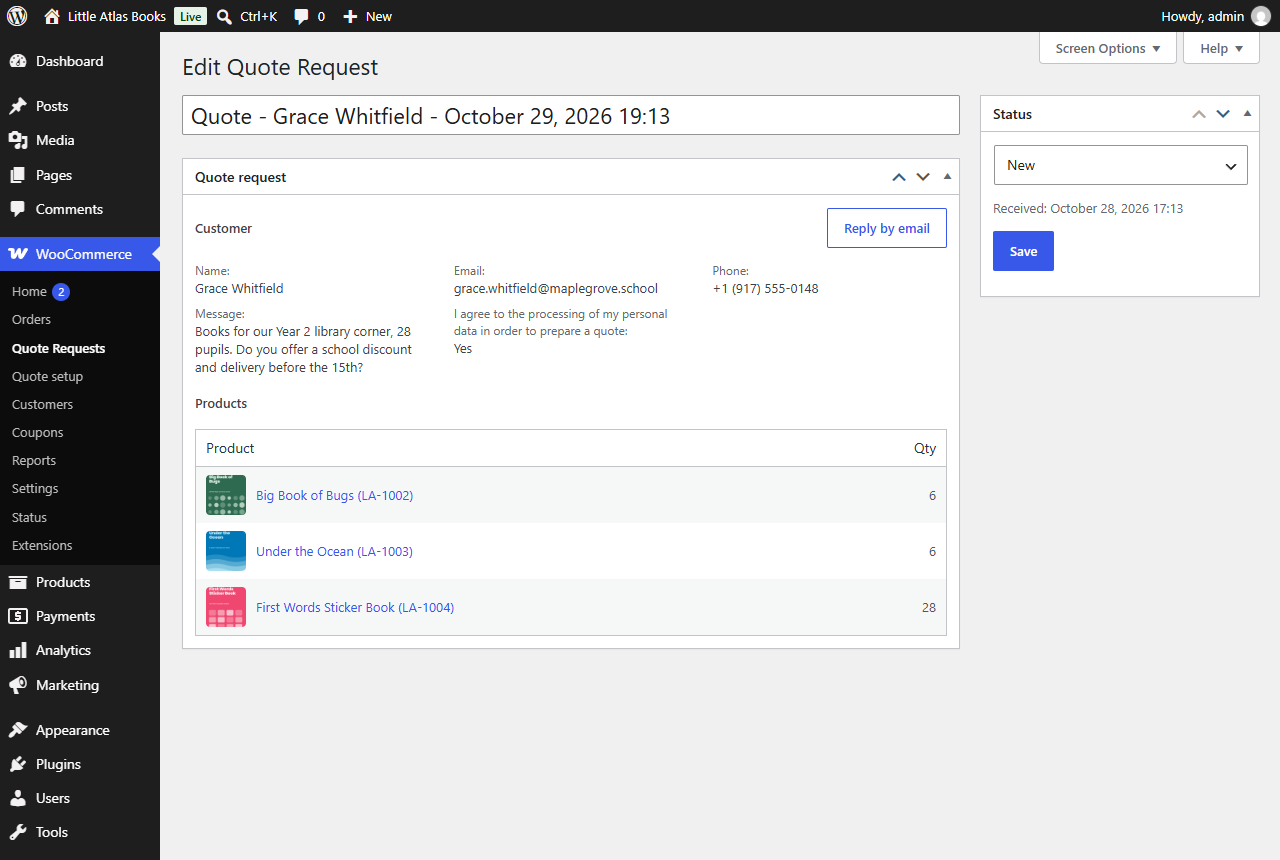
Request list. All requests are in WooCommerce > Quote Requests. Only administrators and shop managers can see them.
| Status | Meaning |
|---|---|
| New | The request has just arrived. |
| In progress | You are working on the answer. |
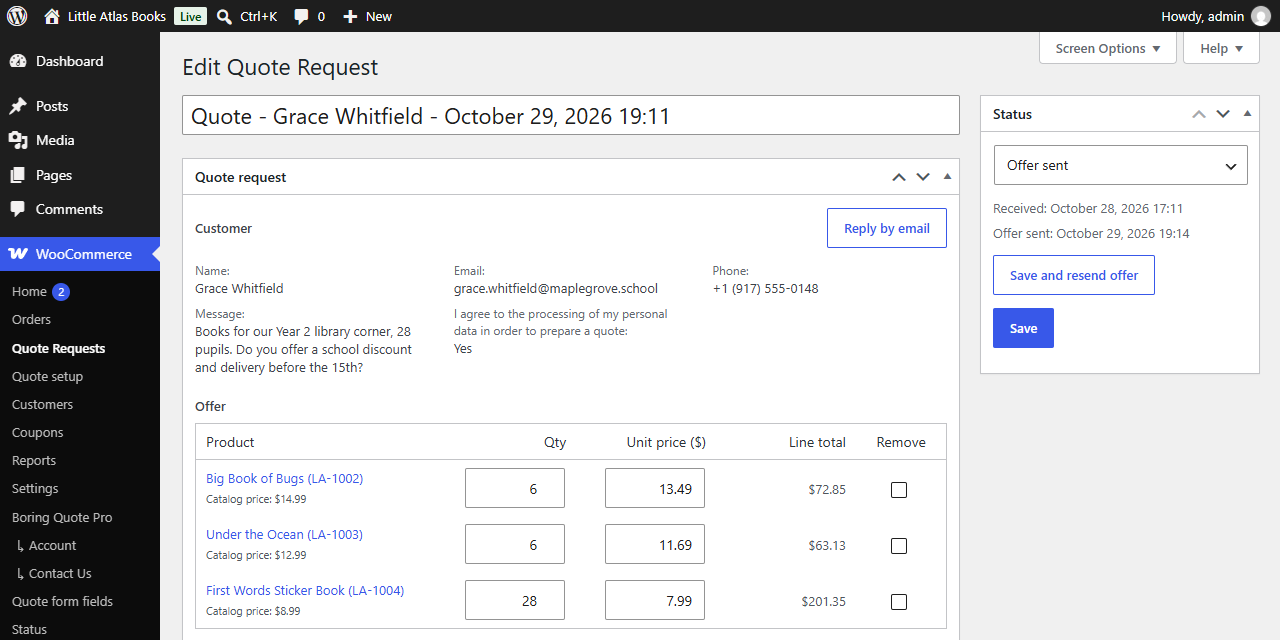
| Offer sent | Pro: the customer has a priced offer. |
| Accepted | Pro: the customer accepted, an order was created. |
| Rejected | The customer declined or you turned the request down. |
| Expired | Pro: the offer is past its valid-until date. |
In Lite you set New, In progress and Rejected by hand. A request shows the customer details, the products with quantities and the status. Reply by email opens a new message to the customer.
Header counter and shortcodes
- in a block theme, add the Quote list counter block in the site editor (for example in the header),
- in a classic theme, put the
	Quote list
	0
shortcode in a menu or widget.
The counter also works with page caching.
| Shortcode | What it shows |
|---|---|
| the list and the form (quote page) |
| the quote button for a given product, anywhere |
	Quote
	0
| a link to the list with the number of items |
Boring Quote Pro
License activation
After installing, go to WooCommerce > Boring Quote Pro and paste the license key from your purchase email. The key starts with sk_. The license number (digits only) is not the key. Without an active license, offers already sent keep working until they expire, but you cannot send new ones.
Pro settings
- Show button on shop and category pages (simple products only, variations are chosen on the product page),
- Offer valid for (days), the default when an offer has no date.
Preparing an offer
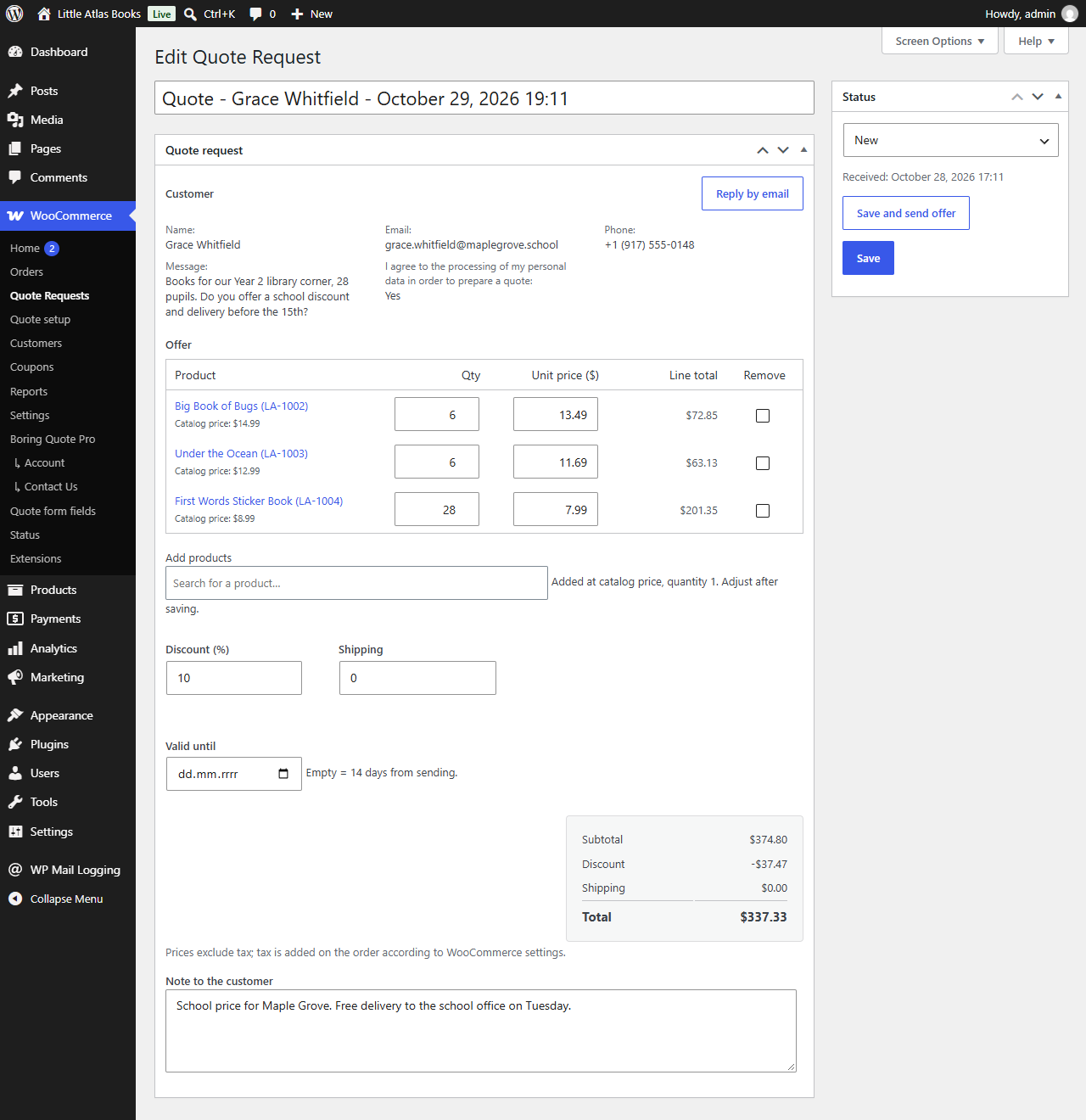
Open a request. Instead of the plain product list you get the offer editor:
- Enter the unit price of each item (the catalog price is shown as a hint). You can change quantities, remove items or add products.
- Set the discount (%) and shipping.
- Optionally add a Valid until date and a note to the customer.
- Click Save and send offer.
Totals update as you type. Prices exclude tax, the order adds tax according to your WooCommerce settings.
What the customer gets
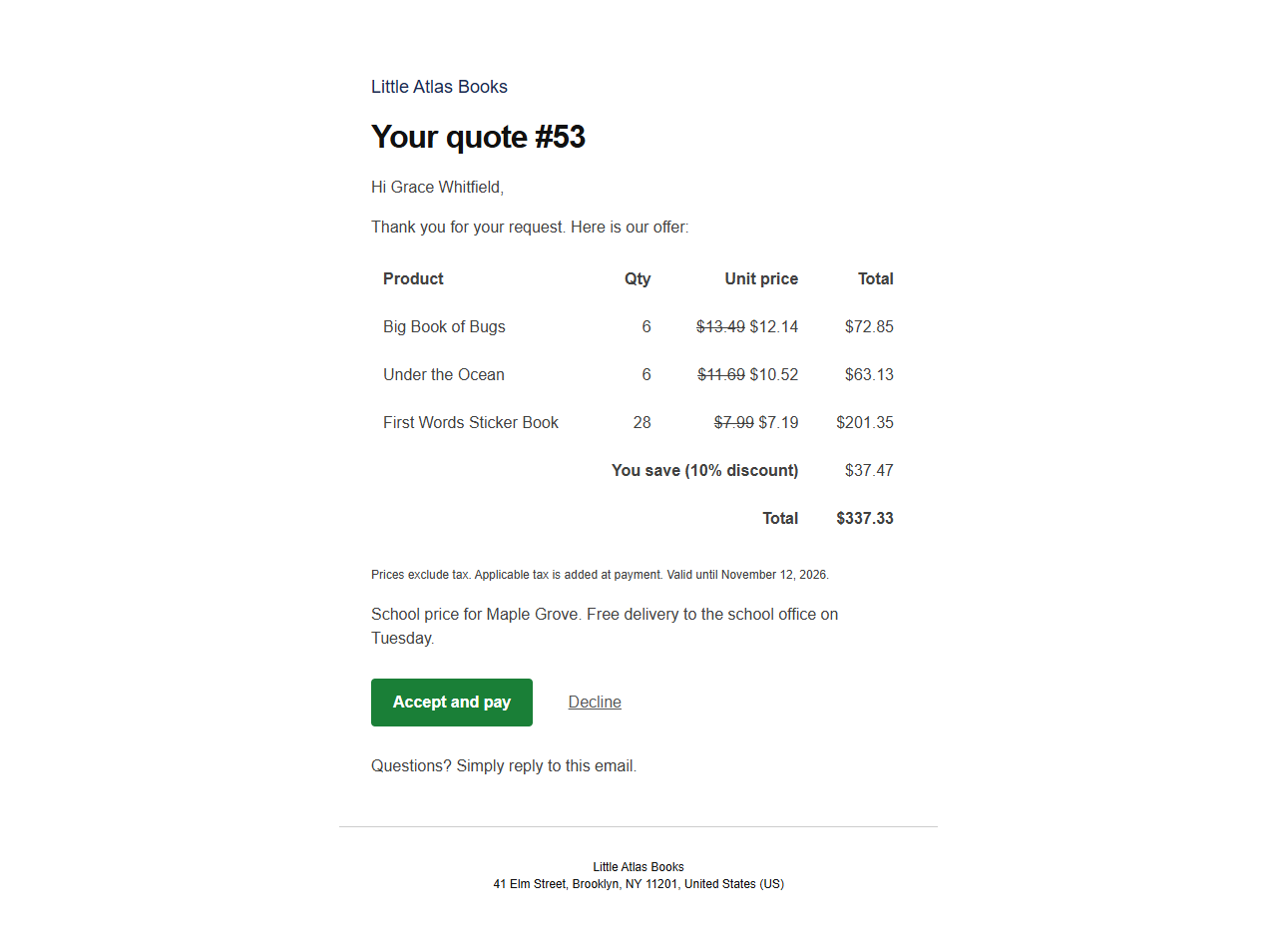
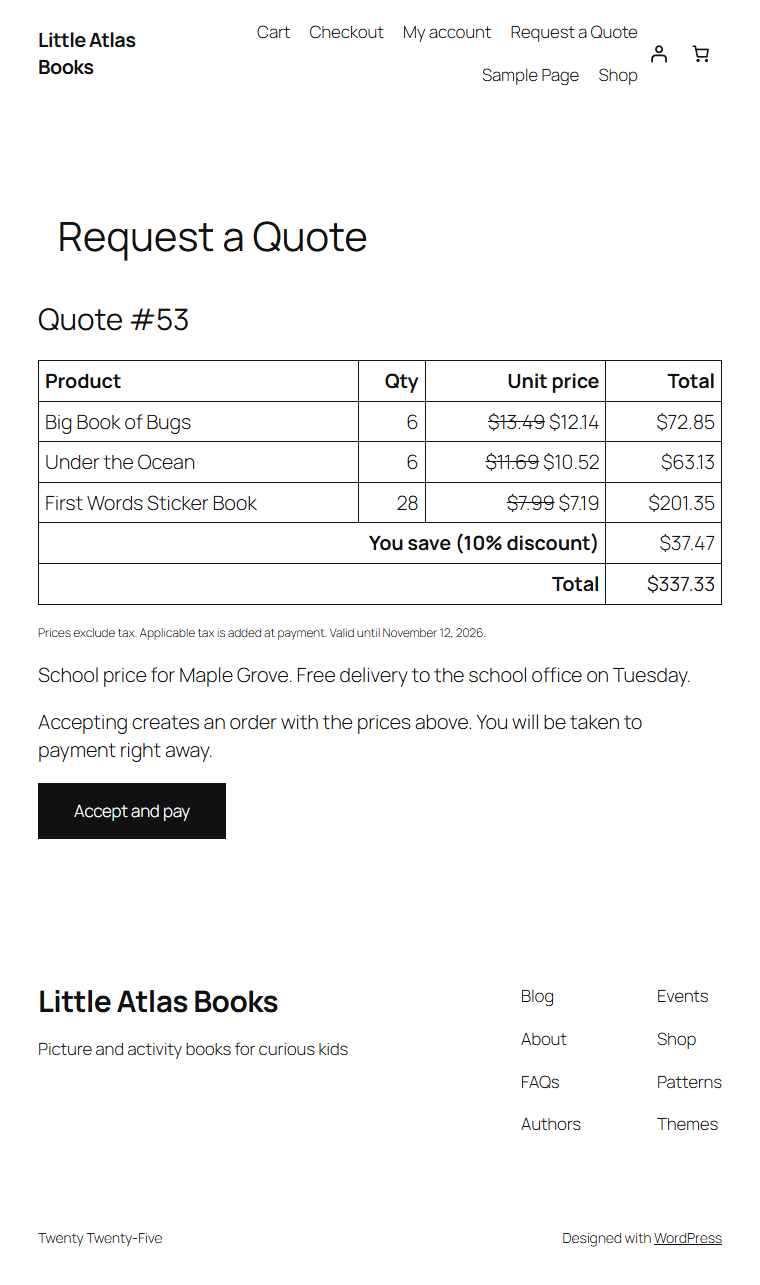
The customer gets an email with the price table and Accept and pay and Decline buttons. The link opens a confirmation screen. Only the click on that screen creates the order and takes the customer to payment, so email scanners never accept an offer by accident.
- sending the offer again cancels the old links,
- changing a sent offer withdraws it, send it again afterwards,
- two clicks at the same time create only one order,
- offers expire on their own after the valid-until date.
If you do not want online payments, enable only bank transfer or cash on delivery in WooCommerce. The order then records the agreement and the money is handled outside the shop.
Custom form fields
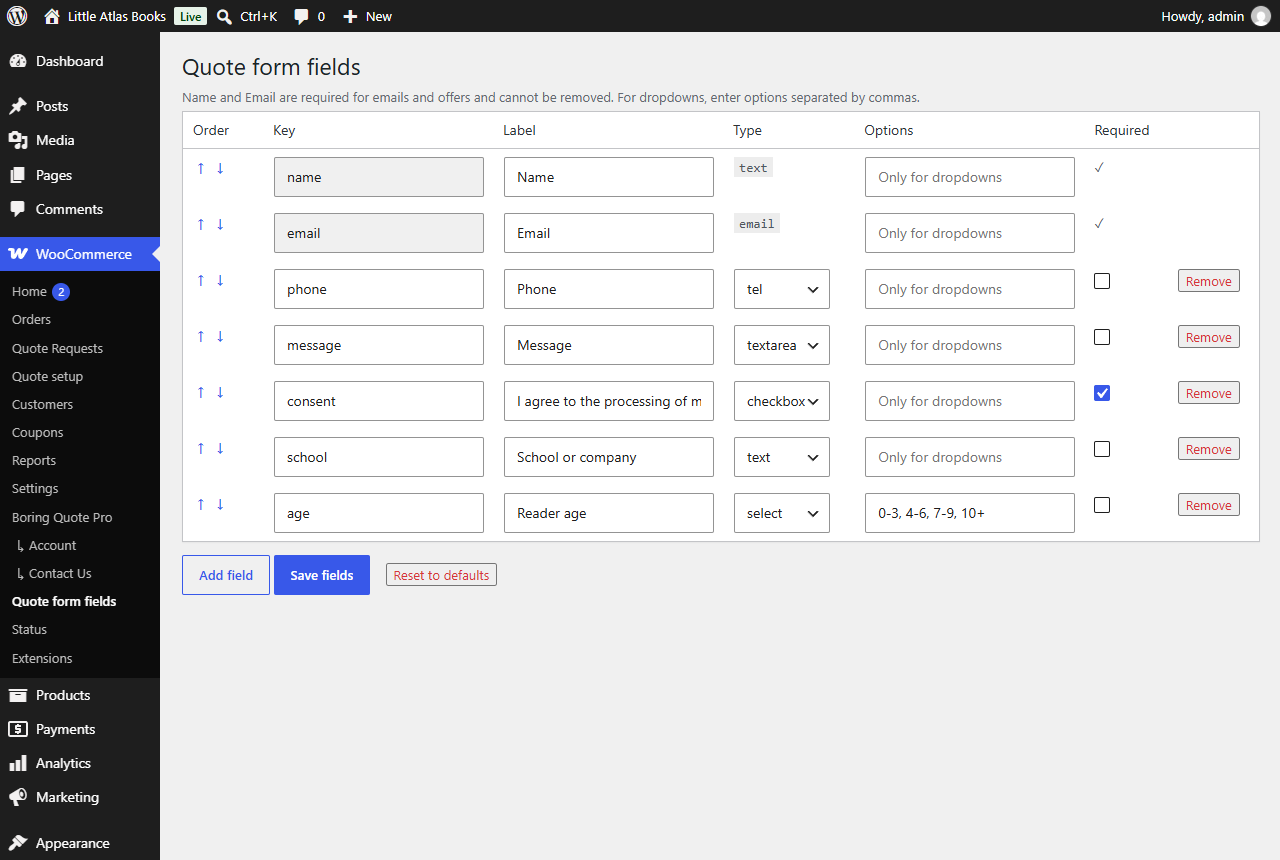
WooCommerce > Quote form fields lets you add text fields, dropdowns, checkboxes and more (7 types), reorder them and mark them as required. Name and email are always there.
Privacy and spam protection
- The consent checkbox is required and you choose its text.
- Requests are included in Tools > Export Personal Data and Erase Personal Data.
- Settings > Privacy has suggested text for your privacy policy.
- Spam protection works without a captcha: a hidden field for bots, a minimum fill time and a limit of 5 requests per 10 minutes per IP address. The IP address is stored only as a hash.
Troubleshooting
The button does not add products for logged-out visitors. With full page caching, exclude the quote page from the cache and make sure product pages are not served from a cache older than 12 hours.
Emails do not arrive. Check the recipient in WooCommerce > Settings > Emails > New quote request. If your server does not send mail, use an SMTP plugin.
The quote page is gone. Pick a page in the settings, or create a new one with the Your quote list is empty.
“Too many requests”. The spam limit is 5 requests per 10 minutes per IP address. Wait a moment when testing.
For developers
Override templates in yourtheme/boring-quote/ (Pro: yourtheme/boring-quote-pro/). Actions and filters are listed in the plugin readme.txt, section “For developers”.
Need help? Contact support. Back to Boring Quote.